Systems & Files
TrueFidelity uses system files (JSON) to capture diagrams, ECU configuration, network settings, and references to assets like DBCs and datasets. This guide explains the system lifecycle: create, open, save, and maintain.
Creating a System
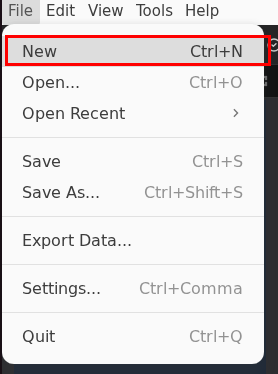
- Open File → New.
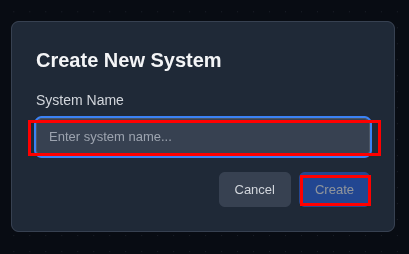
- Name the system and click Create.
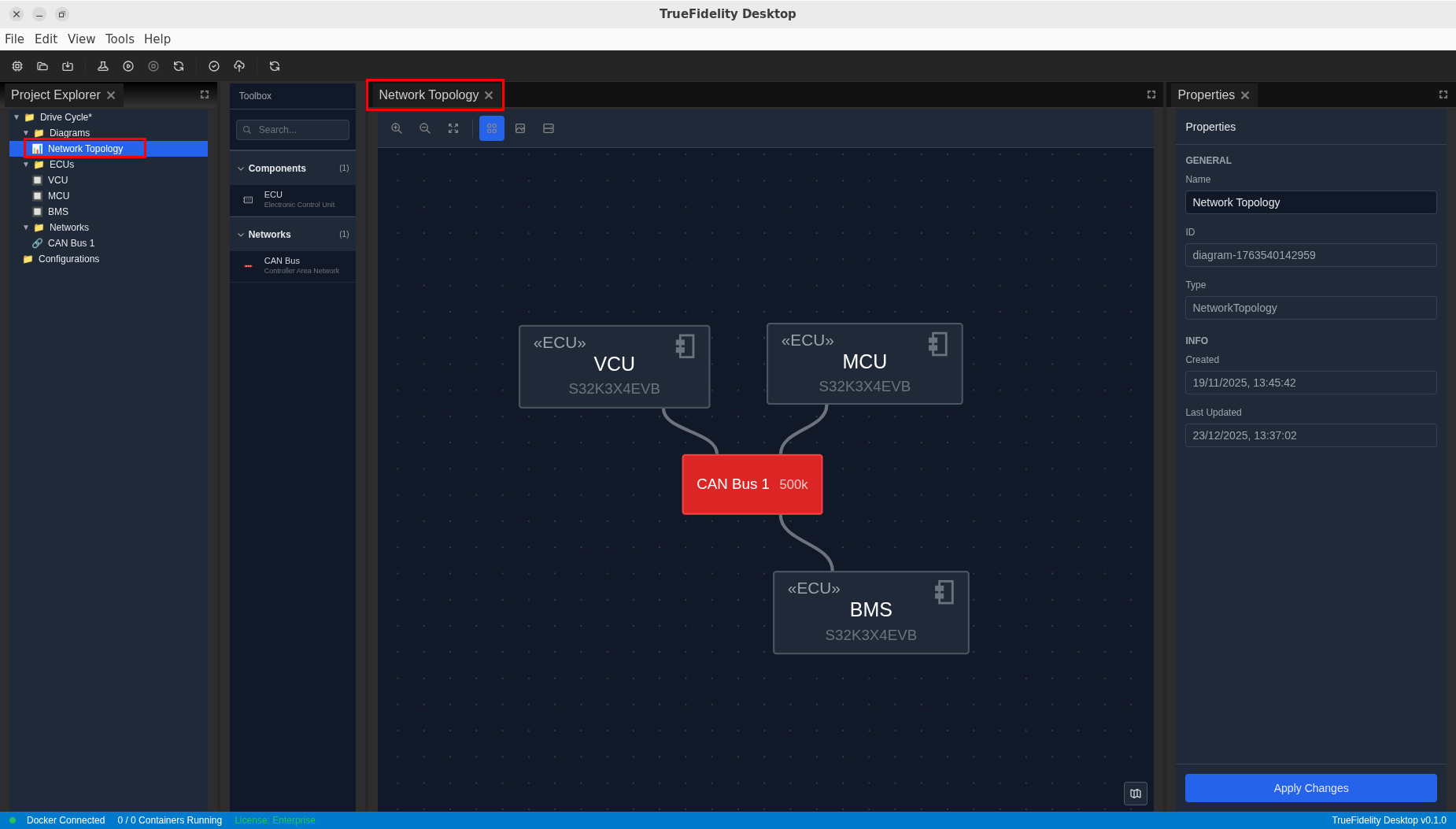
- The system appears in Project Explorer with a starter diagram. Double-click a diagram to open it on the canvas.
Naming and Location Tips
- Use short, descriptive names (for example,
Drive_Cycle_CAN). - Save to a local SSD for best performance.
- Keep DBC and dataset files in a stable location so paths stay valid.
Opening and Saving Systems
- Open: Use File → Open... to load a system JSON file.
- Open Recent: Reopen a recent system from File → Open Recent.
- Save: Writes changes to the last saved location.
- Save As: Choose a new location and filename for the system.
TrueFidelity maintains an autosave snapshot. If the app closes with unsaved edits, it restores the autosave on next launch. An asterisk in the window title indicates unsaved changes.
Project Explorer and Diagrams
Project Explorer is the left-hand tree view:
- Diagrams – Each diagram opens as a tab on the System Canvas.
- ECUs / Networks – Element lists update as you edit the diagram.
- Configurations – System-level configuration items.
To add a new diagram, right-click the Diagrams folder and choose New Diagram.
CAN Network Definitions (DBC)
Select a CAN network on the canvas to configure its DBC file in the Properties panel.
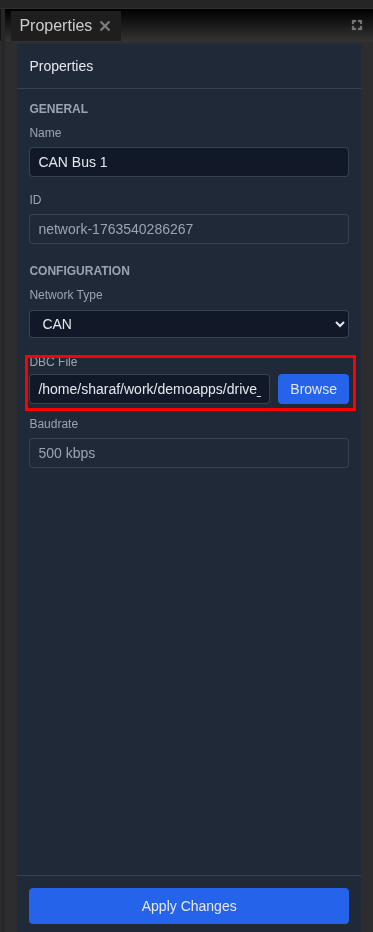
- DBC File: Use Browse to select a DBC file.
- Baudrate: Populates from the DBC when available and is read-only here.
Keep the DBC file accessible on disk. If the file moves, update the path in Properties.
Organizing System Assets
- Store DBCs, firmware, and playback datasets in predictable paths.
- Keep asset folders near the system file to simplify sharing.
- Use version control for the system JSON file to track configuration changes.
Sharing and Backups
- Share the system JSON file plus any referenced assets (DBC files, firmware binaries, datasets).
- If multiple people use the system file, ensure paths are valid on each machine or use shared storage.
- Use standard archive tools to snapshot a system before major changes.
Troubleshooting
| Issue | Solution |
|---|---|
| System opens but the canvas is empty | Double-click a diagram in Project Explorer to open it. |
| Save always prompts for a location | Use Save As once to set a default path. |
| DBC fails to load | Verify the file path and confirm the file is a valid DBC. |
| Autosave reopens unexpected changes | Save the system explicitly before closing to mark it as clean. |
Next Steps
- Review Workspaces & Layouts to customize how panels are arranged.
- Visit UI Tour for a detailed walkthrough of each panel.