Filters & Search
Filtering in TrueFidelity happens inside the panels you use most: Signal Viewer, Network Traffic, Signal Chart, and Signal Player. This guide shows how to narrow data in each view.
Signal Viewer Search
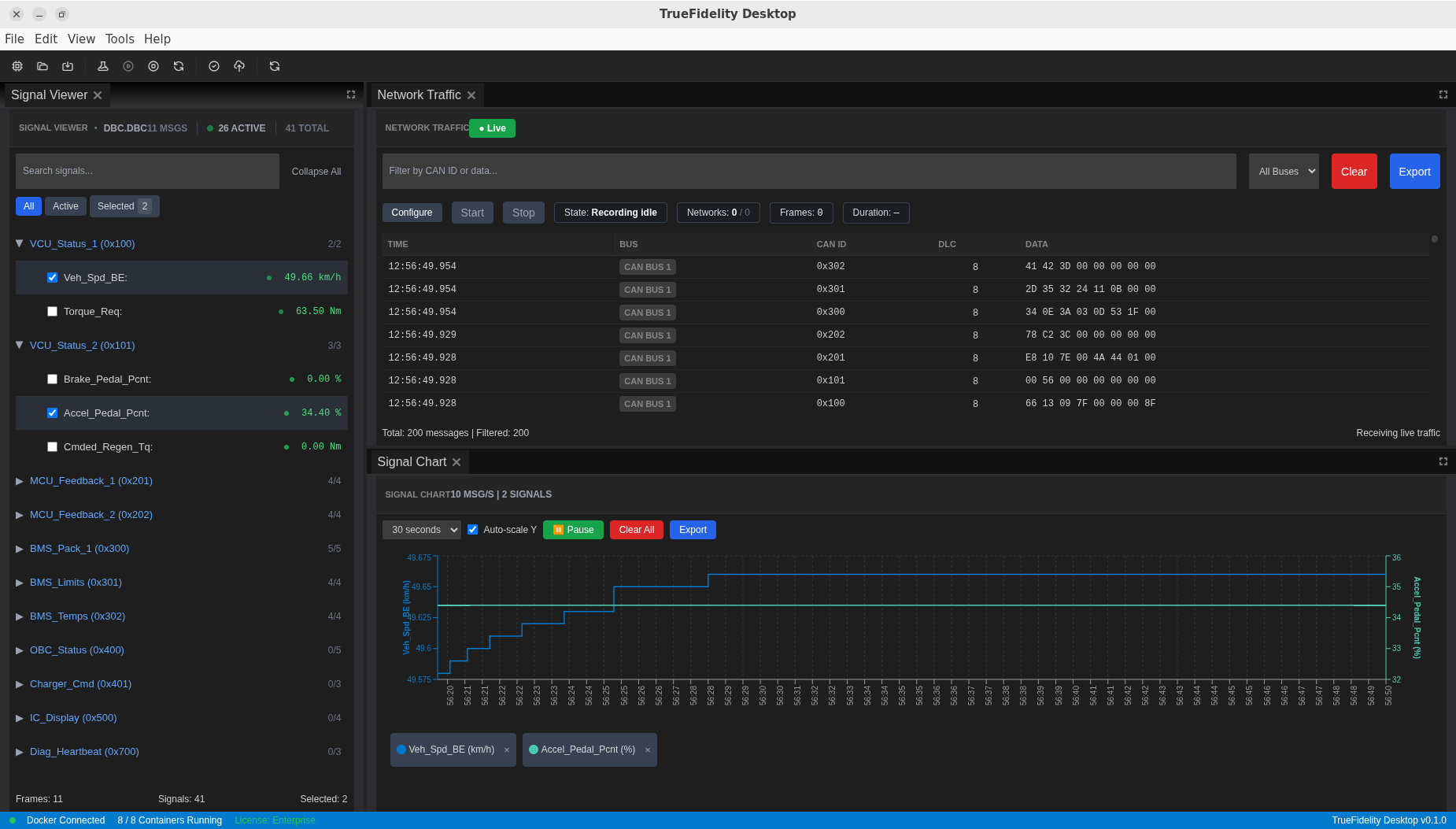
The Signal Viewer (left) supports fast signal discovery:
- Search box filters frames and signals by name or ID.
- All / Active / Selected toggles focus the list:
- All shows every decoded signal.
- Active shows signals currently receiving data.
- Selected shows only signals you have checked.
- Checkbox selection controls which signals appear in Signal Chart.
Example
- Type
speedto filter down to speed-related signals. - Switch to Active to confirm which signals are updating.
- Check two signals to compare them in Signal Chart.
Network Traffic Filters
The Network Traffic panel (top right) is the frame table:
- Filter by CAN ID or data narrows results by ID or payload text.
- Bus dropdown limits results to a specific bus (
CAN,CAN1,CAN2). - Live toggle pauses/resumes the incoming stream without clearing data.
Use Clear to empty the table and Export to save the filtered view.
Example
- Filter by ID: enter
0x101or101to isolate a frame. - Filter by payload: enter
AA FFto find matching payload bytes.
Signal Chart Controls
Signal Chart is driven by selected signals:
- Time window controls how much history is visible.
- Auto-scale toggles dynamic Y-axis bounds.
- Pause freezes updates while you inspect values.
- Clear All removes all plotted signals.
When troubleshooting, pause the chart to compare two time regions without losing context.
Signal Player Filters
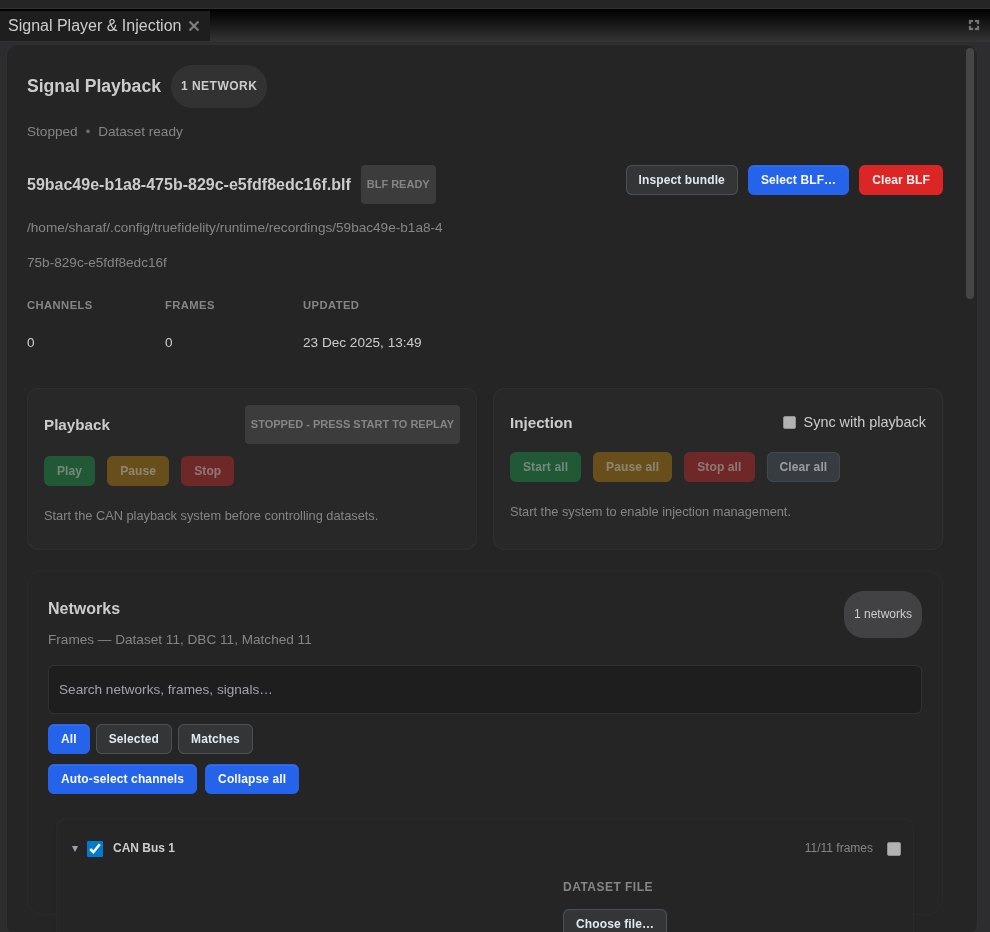
Signal Player provides tree filtering inside Networks:
- Search networks, frames, signals refines the tree view.
- All / Selected / Matches narrows the tree to selected or dataset-matched signals.
- Auto-select channels helps map dataset channels to each network quickly.
Use Matches after running Inspect bundle to confirm which signals align with the dataset.
Tips for Efficient Filtering
- Start broad in Signal Viewer, then narrow to Active and Selected.
- Use Network Traffic filters to verify payloads before charting.
- Keep Signal Chart paused while inspecting value changes or comparing signals.
Troubleshooting
| Symptom | Fix |
|---|---|
| Signal Chart is empty | Select signals in Signal Viewer. |
| Network Traffic shows nothing | Ensure the system is running and Live is enabled. |
| "Matches" is empty in Signal Player | Confirm the DBC file matches the dataset frames. |
Next Steps
- Continue to Playback for dataset setup and streaming controls.
- Visit UI Tour to see each panel in context.