DBC & Signal Definitions
DBC files are the bridge between raw CAN frames and readable signal values. In TrueFidelity, DBCs are configured per CAN network from the Properties panel, and their definitions drive decoding in Signal Viewer, Signal Chart, and Signal Player matching.
Where DBCs Are Used
DBC files affect the UI in several places:
- Signal Viewer uses DBCs to expand frames into individual signals.
- Signal Chart uses DBC scaling, units, and value ranges for plotting.
- Signal Player uses DBC message IDs to match dataset channels to networks.
- Network Traffic remains raw, but DBC selection helps validate IDs and payloads.
If a DBC is missing or mismatched, you’ll see fewer decoded signals and weaker channel matching.
Assigning a DBC to a CAN Network
DBC selection happens on the network node in System Design.
- Open your system and double-click a diagram to open it on the canvas.
- Select a CAN network (for example, CAN Bus 1).
- In Properties, choose a DBC file using Browse.
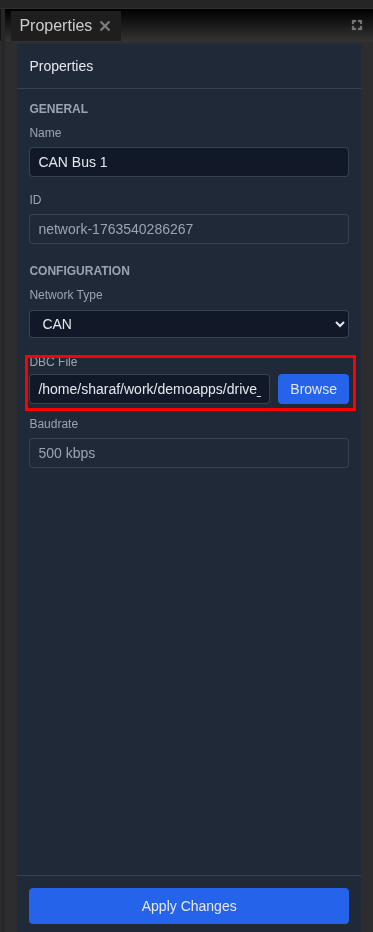
When the DBC is loaded:
- The Baudrate field updates based on the DBC metadata.
- Signal Viewer begins listing frames and signals defined in the DBC.
- Signal Player can map dataset channels to the network using message IDs.
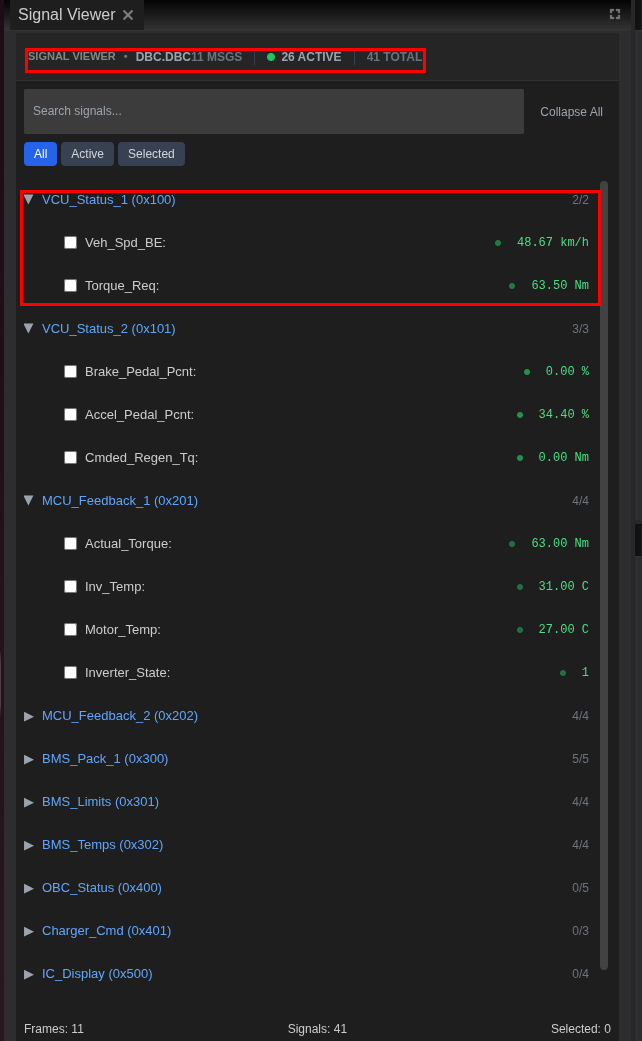
If you move the DBC file later, update the path in Properties to restore decoding.
What Gets Decoded
A DBC typically includes:
- Messages (frame IDs) with human-readable names.
- Signals inside each message, including scaling and units.
- Optional min/max values, comments, and metadata.
These details surface directly in the UI. For example, Signal Chart labels inherit the DBC signal name and unit, and value scaling is applied automatically so charts show real-world units instead of raw payload bytes.
Validating a DBC
After assigning a DBC, confirm it is working:
- Open Signal Viewer and search for a known frame name.
- Check that signals appear under the frame and update while data is flowing.
- Plot a signal in Signal Chart and confirm the unit and scale look correct.
If signals appear but never update, the dataset or live traffic may not contain those message IDs.
Signal Player Matching
Signal Player uses the DBC to align datasets with networks:
- Inspect bundle reads frame IDs from the dataset.
- Auto-select channels chooses the dataset channel with the highest overlap.
- The Matches filter highlights signals that have a dataset match.
If matching fails, the DBC is likely for a different network or firmware version. Swap to the correct DBC and re-run Inspect bundle.
Best Practices
- Keep DBC files versioned and named clearly (for example,
powertrain_v2025.dbc). - Store DBCs near the system file or in a shared, stable directory.
- Update DBCs when firmware changes introduce new signals or IDs.
- Document which DBC version belongs to each system to avoid decoding mismatches.
Troubleshooting
| Issue | Suggested Fix |
|---|---|
| Signal Viewer is empty | Confirm a DBC is assigned to the CAN network. |
| Signals show incorrect units | Verify the DBC scaling and unit definitions. |
| Signal Player “Matches” is empty | Use the correct DBC for the dataset and re-run Inspect bundle. |
| Baudrate looks wrong | Check the DBC metadata or confirm the file is not a placeholder. |
Next Steps
- Use Filters & Search to narrow signals once decoding is active.
- Review Playback to understand dataset mapping and control flows.