Playback
Playback in TrueFidelity is driven from the Signal Player & Injection panel. You attach datasets, map channels to networks, and control streaming from there.
Before You Start
- Open a system that contains a CAN network.
- Assign a DBC file to that network in Properties.
- Ensure Docker is connected (status bar shows Connected).
Without a running system and a DBC, channel matching and signal selection will be limited.
Signal Player & Injection Panel
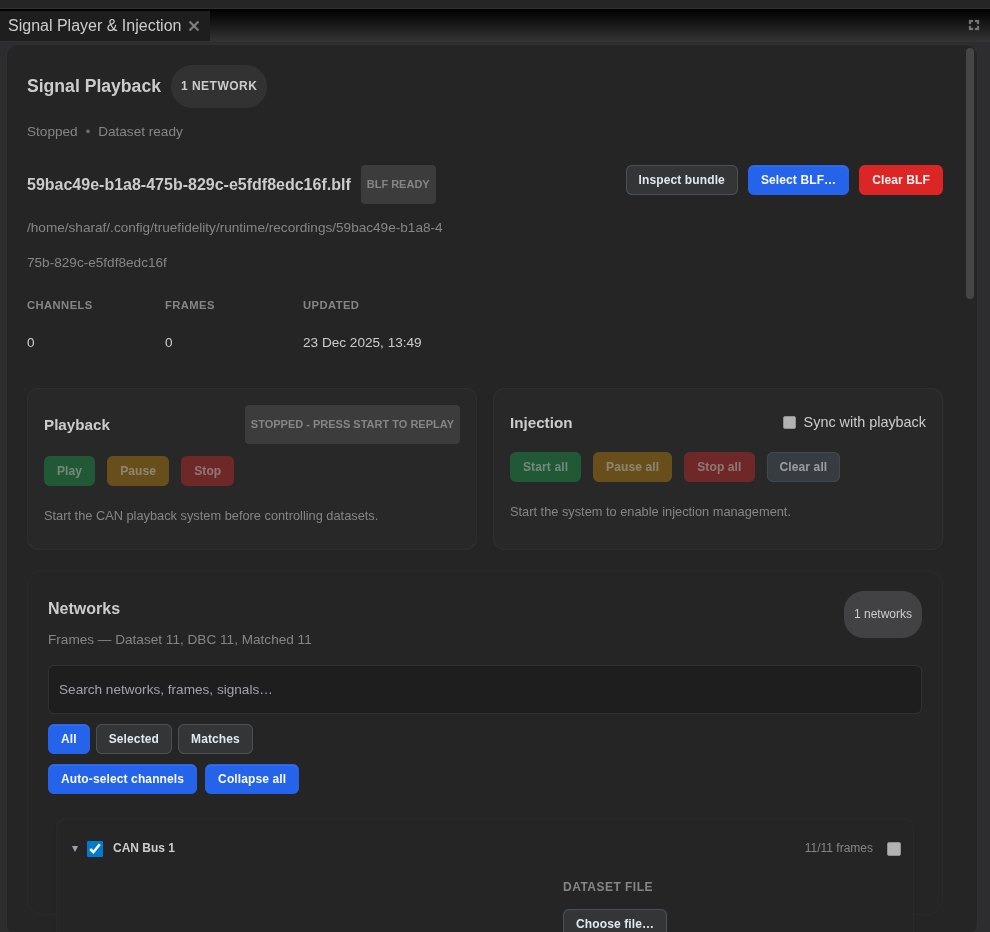
The panel is organized into three areas:
- Dataset header – Global dataset selection and status.
- Playback controls – Play, Pause, Stop for dataset streaming.
- Injection controls – Start/Pause/Stop/Clear injection sessions.
Dataset Setup (BLF)
Use the header controls to manage global datasets:
- Click Select BLF... and choose a dataset.
- Click Inspect bundle to refresh dataset metadata.
- Use Clear BLF when you need to detach the dataset.
When a dataset is ready, the panel displays channel counts, frame totals, and last updated time.
Network Mapping
In the Networks section:
- Select a network (for example, CAN Bus 1).
- Click Auto-select channels to map the dataset to the network.
- Use All / Selected / Matches to filter the tree.
The network summary shows dataset frames vs. DBC frames and matched signal counts.
Playback Controls
- Play starts streaming frames to the selected networks.
- Pause temporarily halts streaming while keeping the dataset attached.
- Stop ends playback.
If the system is not running, playback controls remain disabled and the panel shows a helper message.
Injection Overview
Signal injection is managed in the same panel:
- Start all / Pause all / Stop all / Clear all control all active overrides.
- Sync with playback aligns injection state with playback.
To inject a signal, open the signal menu in the tree, enter a value and length, and enable it for the session.
Pairing with Other Panels
Playback is most effective when you keep these panels visible:
- Signal Viewer – Select signals for charting.
- Signal Chart – Plot selected signals and export charts.
- Network Traffic – Verify raw frames and payloads during streaming.
Use the Network Analysis layout to keep Signal Viewer, Network Traffic, and Signal Chart visible alongside Signal Player.
Troubleshooting
| Problem | Suggested Fix |
|---|---|
| Playback controls disabled | Start the system with the main toolbar first. |
| Dataset shows "missing" | Select a BLF file and re-run Inspect bundle. |
| No signals match | Confirm the DBC file on the CAN network matches the dataset frames. |
| Charts stay empty | Select signals in Signal Viewer and verify Network Traffic is active. |
Related Documentation
- Filters & Search – Refine the signal tree and chart selections.
- Workspaces & Layouts – Arrange Signal Player, Network Traffic, and Charts.